Full Disk Access on your Mac: which apps see everything?
Your Mac has a switch that gives an app access to almost everything: your files, your mail, your messages and your browsing history. It’s called Full Disk Access. Chances are you once turned it on for an app and then forgot about it.
Apple now thinks that switch is too dangerous, and points to AI agents as the reason. Below you’ll find what is changing and, more importantly, how to check for yourself today which apps are allowed to see everything.
What Apple announced on October 2
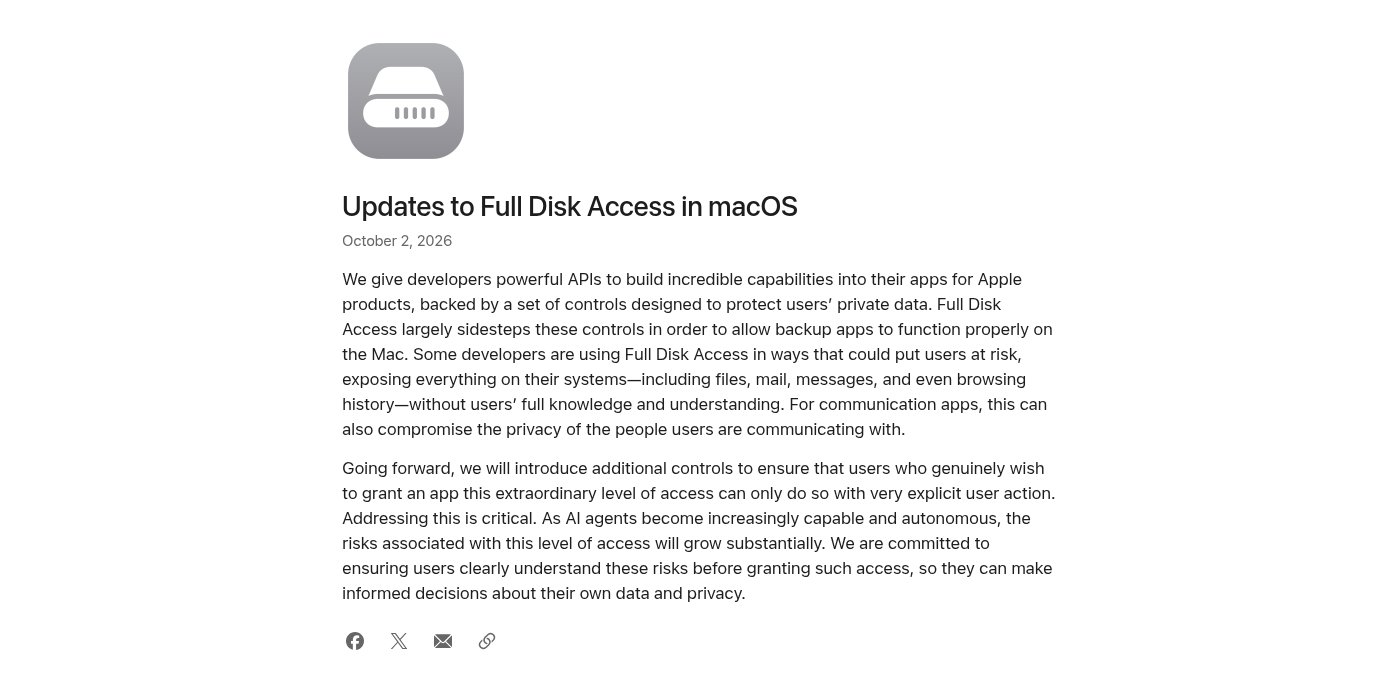
In a brief announcement on its developer site, dated October 2, 2026, Apple writes that Full Disk Access “largely sidesteps” the normal privacy controls of macOS. That is by design: it lets backup apps work properly.
But according to Apple, some developers misuse the feature: “Some developers are using Full Disk Access in ways that could put users at risk.” With that, everything is exposed: “including files, mail, messages, and even browsing history”, and that “without users’ full knowledge and understanding”. For messaging apps, Apple notes that this also affects the privacy of the people you talk to.
That is why there will be “additional controls”. Anyone who really wants to give an app “this extraordinary level of access” will only be able to do so “with very explicit user action”. And then the sentence that made headlines: “As AI agents become increasingly capable and autonomous, the risks associated with this level of access will grow substantially.”
When this takes effect and in which macOS version, Apple doesn’t say. The Verge also notes that there is no date. So what exactly that “very explicit user action” will look like, we don’t know yet.
Why AI agents make it riskier
The timing is no accident. TechCrunch ties Apple’s announcement to Meta’s AI agent Muse, the same Muse we wrote about earlier. Inc. columnist Jason Aten wrote that Muse knew the contents of his private messages, even though, by his own account, he had not given the agent permission.
Meta disputes that. Spokesperson Andy Stone, quoted by The Verge, says that access to Messages is “entirely opt-in”: you have to turn on both Full Disk Access and Muse’s Messages integration for the agent to read your messages.
That is exactly the point. A regular app that can read everything is a risk. An AI agent that can read everything and act on its own is a bigger risk. It can be misled by hidden instructions and then carry them out with your permissions. We already saw this with the ChatGPT leak that let attackers read along in Gmail.
The AI app itself is also a target. Wired reported on October 2 that researchers from the Objective-See Foundation, including Patrick Wardle, found a now-patched flaw in ChatGPT’s Mac app. Malware already on your Mac could have used it to take over the app and access your chat history. According to Wired, OpenAI acknowledged the leak on September 25. In its release notes for that day, OpenAI thanks researcher Patrick Wardle for a security fix on macOS. So update your apps.
Check your Full Disk Access
You don’t have to wait for Apple. Do this today, using the menu names as Apple uses them in its support guide:
- Choose the Apple menu and open System Settings.
- In the sidebar, click Privacy & Security. You may need to scroll down to find it.
- Click Full Disk Access. You’ll see the apps in the list, each with a switch. If the switch is on, the app has access.
Apple describes what you are giving away this way: access “to all files on your computer, including data from other apps (for example, Mail, Messages, Safari, and Home), data from Time Machine backups, and certain administrative settings for all users on this Mac”.
Revoke Full Disk Access
- Go through the list on that same screen. Don’t recognize an app, or no longer use it? Turn off the switch next to it.
- Unsure about an app? Turn it off and see if everything still works.
- If an app actually needs it, turn the switch back on. If the app isn’t in the list, Apple says to click the plus button, select the app and click Open. That way, at least you make the choice consciously.
While you’re in Privacy & Security, take a look at four other lists as well. These show apps that can control your Mac or see what you do:
- Accessibility: apps that are allowed to run “scripts and system commands” to “control your Mac”.
- Automation: apps that are allowed to control other apps on your Mac.
- Screen & System Audio Recording: apps that are allowed to record your screen and audio.
- Input Monitoring: apps that are allowed to see what you type and what you do with your mouse or trackpad.
Which apps really need it?
These are our rules of thumb, not an official Apple list. Apple only says the feature exists for backup apps.
| App type | Our advice | Why |
|---|---|---|
| Backup software | Usually on | This is what the feature is for, according to Apple |
| Antivirus and security | Often on | Scans your entire drive, including protected folders |
| Chatbot app (ChatGPT, Claude, Gemini) | Off | A chat window doesn’t need your mail and messages |
| AI agent that controls your Mac | Preferably off | Often already asks for Accessibility and screen recording, don’t give everything at once |
| Notes, photo or music app | Off | There are targeted permissions for these |
| Developer tools and terminal | Only if necessary | Turn it on only if you know what for |
Rules of thumb for AI apps on your Mac
Never give Full Disk Access to a chatbot. If you want ChatGPT or Claude to view a file, drag that one file into the conversation. That’s targeted sharing, not handing over the key ring.
Be strict with agents that control your Mac. Such an agent typically asks for Accessibility and screen recording, and sometimes also Full Disk Access. Every extra permission increases the damage if the agent is misled.
Preferably run an agent in a separate user account on your Mac, without your personal mail and messages. If something goes wrong, your private life stays out of harm’s way.
Revoke access after a test. If you try out a new AI tool, turn the permissions back off afterward. You can always grant them again.
Keep your apps updated. The flaw in ChatGPT’s Mac app shows that the AI app itself is a target. The same goes for AI in macOS itself: if you turn on Siri AI on your Mac, also turn on automatic software updates.
Our take
Apple is right here, and frankly it’s overdue. Full Disk Access exists, according to Apple itself, for backup software: an app that does what you ask it to do and nothing more. An AI agent decides for itself what it reads and does, and can be manipulated by text it comes across along the way. If you let such an agent see everything, you’re giving a stranger the keys to every room in the building. Incidentally, Wardle uses the same image in Wired: agents are like a building manager with keys to all the rooms.
The strongest counterargument deserves a hearing: agents only become truly useful if they can access your data. An assistant that can’t read your mail can’t reply to it. That’s true. But macOS also has targeted permissions, such as Files & Folders per location and per app. An agent that only works with access to everything is poorly built, not clever.
And a caveat about Apple: as long as there is no date and no details, nothing changes for you today. An extra confirmation doesn’t protect you either if you dismiss it out of habit. The best protection is the five minutes you spend in System Settings right now. Do it today, and repeat it every time you install a new AI tool.